
FAQ
Yes, the answers you're looking for can most likely be found in this short training video, covering everything to help your training run smoothly.
On a laptop click on the red Register button on the homepage.

On a mobile device, open the menu and scroll down and tap on Register.
Complete the registration form with your details
- Enter your personal details
- Enter your organisation/agency code in the relevant field
- If you are paying for your own courses, enter N/A
- Create your password
- Complete the Security Check
- Click Register to continue
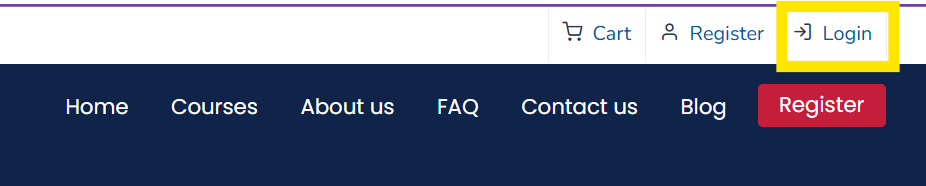
Click on Login in the top-right corner of the homepage
Enter your:
- Email address
- Password
After clicking Sign In you will be directed to your dashboard
Once logged in, you can:
- Go to My Courses or My Master Courses to start training
- Go to Courses to select and purchase additional training

Click on Forgot Password and follow the instructions sent to you in an email.
When logged in to your account select My Courses or My Master Courses from the dashboard.
Choose the course you want to complete and work through all pages and all modules/ sections.
If you are working through an organisation or agency that supplies your training, additional courses available to you can be found in your Learning Portal Dashboard
Need more help? Watch our dashboard walkthrough video – You really will find it very useful!
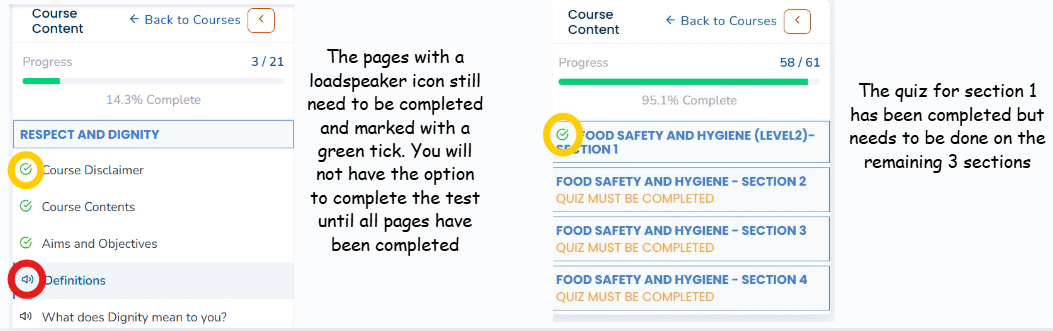
Make sure all pages within section/modules are marked as completed; they must have the green tick in the green circle. Then you will have the option to do the quiz
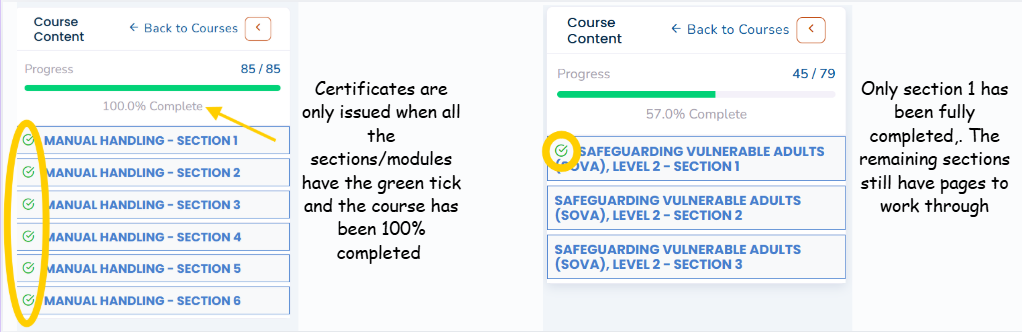
Certificates are only issued when all sections of the course have been completed and the quiz has been passed
If your training was arranged through an organisation or agency, your certificates will be sent directly to them. Please contact them for a copy.
If you purchased your own courses, you can download your certificates from My Certificates in your dashboard.
If you need help, email: info@interactivehealthcaretraining.co.uk
- Log in to your account
- Select Courses from the menu across the top of the page
- Choose the courses you want
- Add them to your basket
- Complete the checkout process
Courses can be renewed up to 6 months before they expire.
To renew:
- Log in to your account
- Go to My Courses
- Find the course that is due to expire
- Click the red Renew button
If you purchased your own training, you will need to pay when renewing.
You can pay online using:
- Debit card
- Credit card
- PayPal
If paying by card, simply select the option to check out as a PayPal guest. Please email us at info@interactivehealthcaretraining.co.uk if you need any assistance making a payment.
Re-enter your email address in both the Email and Confirm Email fields.
Check that:
- There are no typing errors
- There are no extra spaces before or after the email address
- If copying and pasting, you haven't copied any hidden spaces
This means an account already exists with that email address.
Try:
- Clicking Forgot Password to reset your password
- Contacting us at info@interactivehealthcaretraining.co.uk if you still need help.
No. Once a course has been added, it cannot be removed.
If you no longer need the course, simply leave it incomplete.